
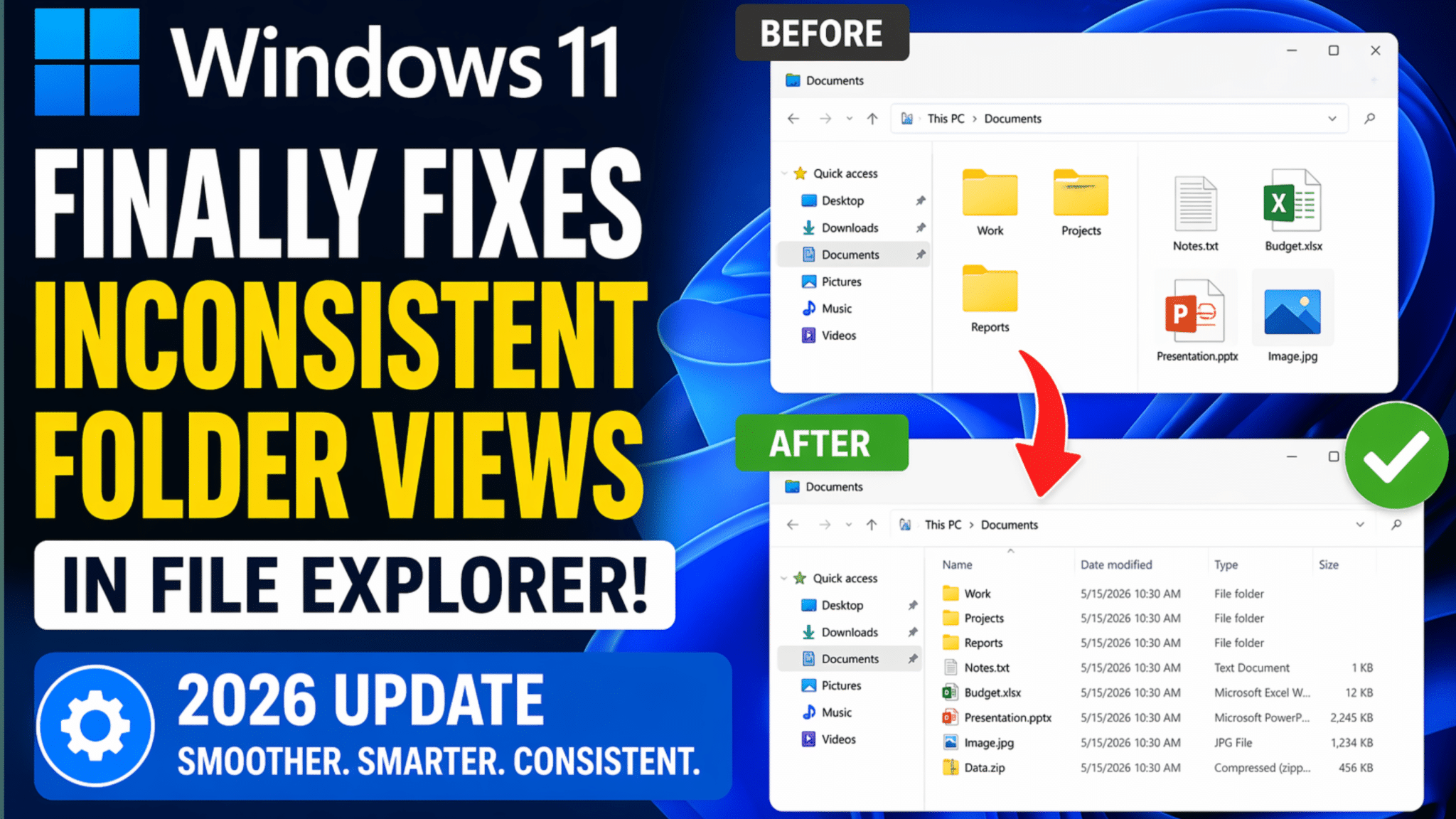
If you’ve ever used File Explorer and felt frustrated by folder views constantly resetting or behaving unpredictably, you’re not alone. For years, users have complained about inconsistent folder views in Windows. But now, with the latest Windows 11 (2026 update), Microsoft has finally addressed this long-standing issue.
At https://www.priyoblog.com/, we keep you updated with the latest tech improvements that actually matter. And this one? It’s a game-changer for productivity and user experience.
In this comprehensive guide, we’ll explore what was wrong before, what’s been fixed, and how this update in Windows 11 can significantly improve your workflow.
What Was the Folder View Problem in Windows 11?
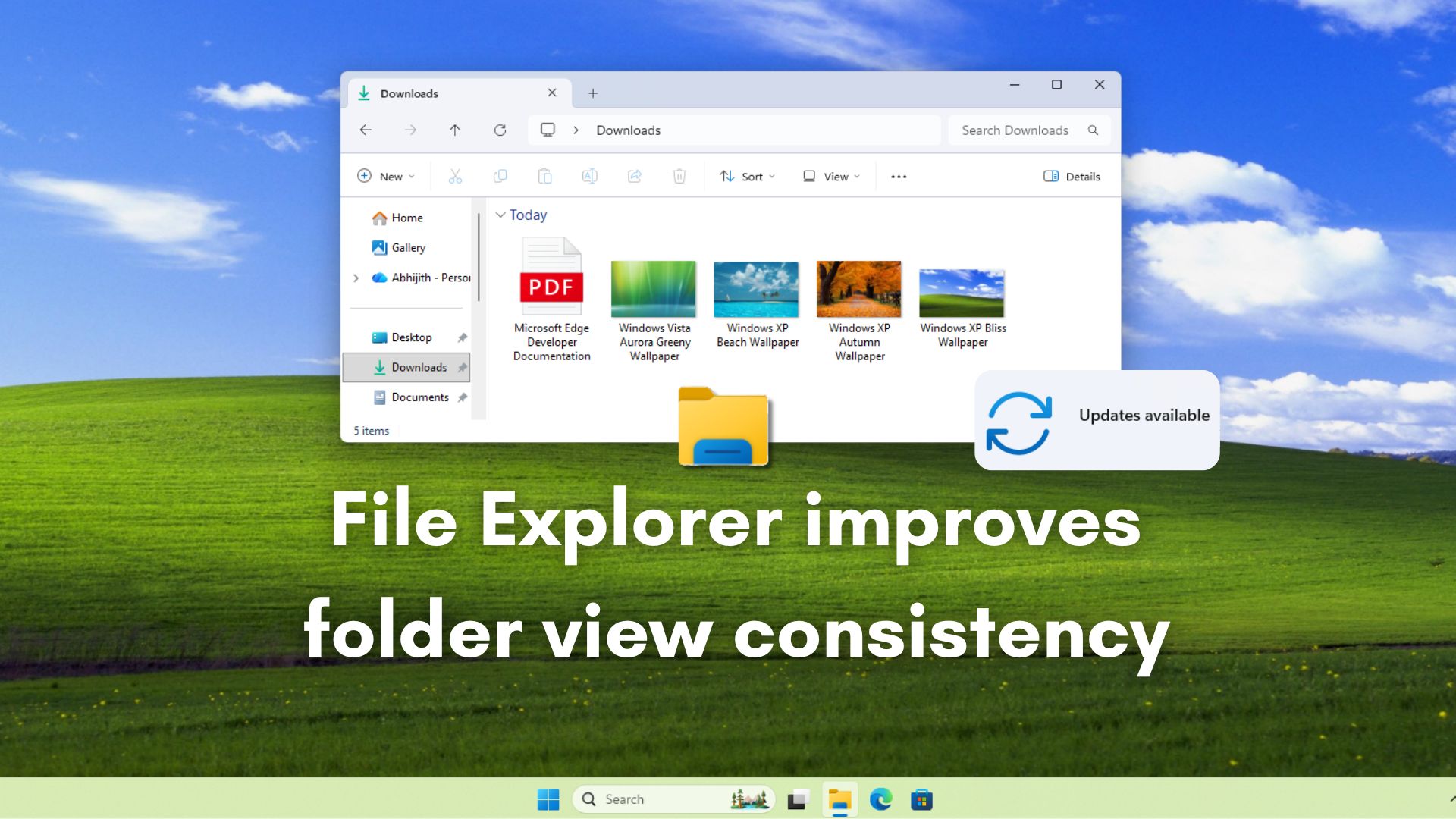
A Long-Standing Issue
Before the 2026 update, Windows 11 users experienced several issues with folder views, such as:
- Folder settings not saving properly
- Views resetting to default
- Different folders randomly sharing the same layout
- Sorting and grouping preferences disappearing
This inconsistency made file management frustrating, especially for professionals dealing with large amounts of data.
Why It Was a Big Deal
File Explorer is one of the most frequently used tools in Windows 11. When it doesn’t behave predictably, it slows down work and affects productivity.
Imagine:
- Setting a folder to “Details View”
- Coming back later and finding it switched to “Large Icons”
- Repeating this process over and over
That’s exactly what users faced.
What’s New in the Windows 11 2026 Update?
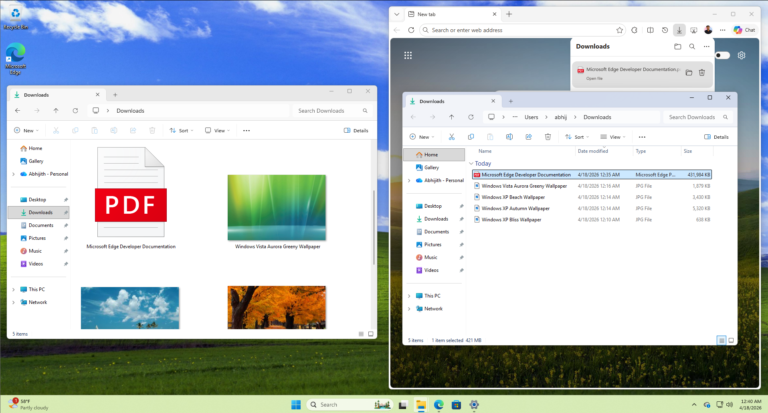
Smarter Folder View Memory
The latest Windows 11 update introduces a smarter system that:
- Remembers individual folder preferences accurately
- Applies settings consistently across sessions
- Differentiates between folder types more effectively
Improved Folder Type Detection
Windows now better understands folder content types such as:
- Documents
- Pictures
- Videos
- Music
Key Improvements Include:
- No more random switching of layouts
- Better automatic view suggestions
- Consistent sorting behavior
Enhanced Customization Controls
Users now have more control over how folders behave:
- Lock folder view settings
- Apply settings to similar folders
- Reset specific folders without affecting others
How Windows 11 Fixes the Problem
1. Persistent View Storage
Previously, Windows 11 stored folder settings inconsistently. Now:
- Each folder has its own persistent configuration
- Settings are saved reliably even after restart
2. Improved Database System
Microsoft upgraded the internal system that stores folder preferences:
- More stable database
- Reduced corruption issues
- Faster loading times
3. Better User Overrides
Users can now override automatic behavior easily:
- Manual settings take priority
- System won’t override your preferences randomly
Key Benefits of This Update
Boosted Productivity
No more wasting time resetting folder views. You can:
- Work faster
- Stay organized
- Focus on tasks instead of fixing settings
Consistency Across Folders
With Windows 11, you’ll experience:
- Uniform behavior
- Predictable layouts
- Less confusion
Improved User Experience
This update makes File Explorer feel:
- More modern
- More reliable
- More user-friendly
How to Use the New Folder View Features
Step 1: Open File Explorer
- Press
Windows + E
Step 2: Customize Your Folder
- Choose view (List, Details, Icons, etc.)
- Sort and group as needed
Step 3: Apply Settings
- Click on “View” options
- Select “Apply to Folders” (if available)
Step 4: Lock Preferences (New Feature)
- Enable persistent view settings
Tips to Get the Best Experience in Windows 11
Optimize Folder Views Like a Pro
- Use “Details View” for work folders
- Use “Large Icons” for media folders
- Group files by type or date
Keep Your System Updated
Always ensure your Windows 11 is updated to:
- Access latest fixes
- Improve performance
- Avoid bugs
Organize Files Properly
- Use clear folder names
- Avoid clutter
- Separate work and personal files
Comparison: Before vs After Update
| Feature | Before Update | After Update |
|---|---|---|
| Folder View Memory | Inconsistent | Reliable |
| Customization | Limited | Advanced |
| Performance | Slower | Faster |
| User Control | Weak | Strong |
| Experience | Frustrating | Smooth |
Why This Update Matters
This isn’t just a small fix. It’s a major quality-of-life improvement in Windows 11.
For Professionals
- Saves time
- Improves workflow
- Reduces frustration
For Casual Users
- Easier navigation
- Better organization
- Cleaner interface
Common Issues Still to Watch
Even though Windows 11 has improved, you might still notice:
- Minor glitches in rare cases
- Settings not applying to network drives
- Occasional lag in large directories
However, these are far less common than before.
FAQ Section
1. What is the folder view issue in Windows 11?
It’s a problem where File Explorer fails to remember your folder layout preferences, causing them to reset or change unexpectedly.
2. Has Windows 11 completely fixed this issue?
The 2026 update significantly improves it, making folder views far more consistent and reliable.
3. How do I update to the latest Windows 11 version?
Go to Settings → Windows Update → Check for updates and install the latest version.
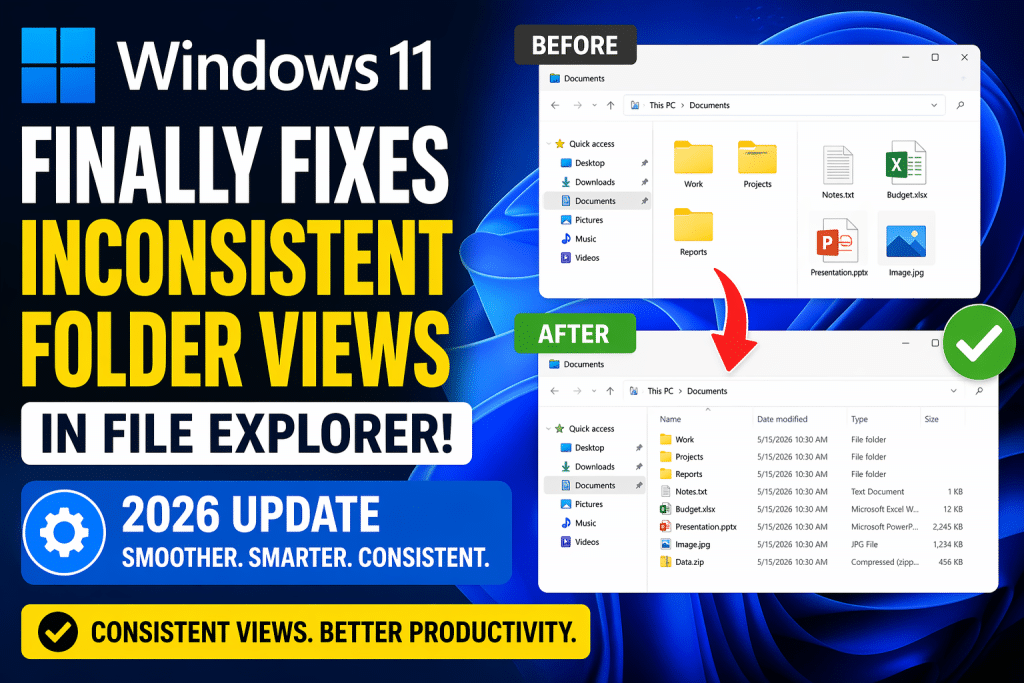
4. Can I customize folder views individually now?
Yes, Windows 11 now allows better individual folder customization and remembers settings more accurately.
5. Does this update improve File Explorer performance?
Yes, it also improves speed, stability, and responsiveness.
6. Is this feature available for all users?
It depends on your update version. Make sure your Windows 11 is fully updated.
Conclusion
The 2026 update proves that Microsoft is finally listening to user feedback. By fixing inconsistent folder views, Windows 11 takes a big step toward a smoother and more reliable user experience.
This improvement may seem small at first glance, but it has a huge impact on daily productivity. Whether you’re a professional, student, or casual user, this update will make your digital life easier.
👉 If you want to stay updated with the latest tech tips, guides, and updates like this, don’t forget to visit https://www.priyoblog.com/ regularly.
Call-to-Action
Have you updated your Windows 11 yet?
Try the new File Explorer improvements today and share your experience!
And if you found this guide helpful, bookmark it, share it, and stay connected for more tech insights 🚀










Leave a Comment