

Many of us use WhatsApp every day, but not everyone knows all of its features. Even if we know about some of them, we often don’t know how to use them properly. So friends, today PriyoBlog brings you another helpful guide on how to change your WhatsApp username very easily.
Without wasting any more time, let’s get started. In this article, I will show you step by step how to change your WhatsApp username.
Before we begin, if you are new to the PriyoBlog website, don’t forget to leave a comment.
How to Change Your WhatsApp Username
First, open WhatsApp. Follow the screenshots below carefully, and you will be able to complete the process very easily.
After opening WhatsApp, tap the three-dot menu in the top-right corner. Then follow the next screenshot carefully.
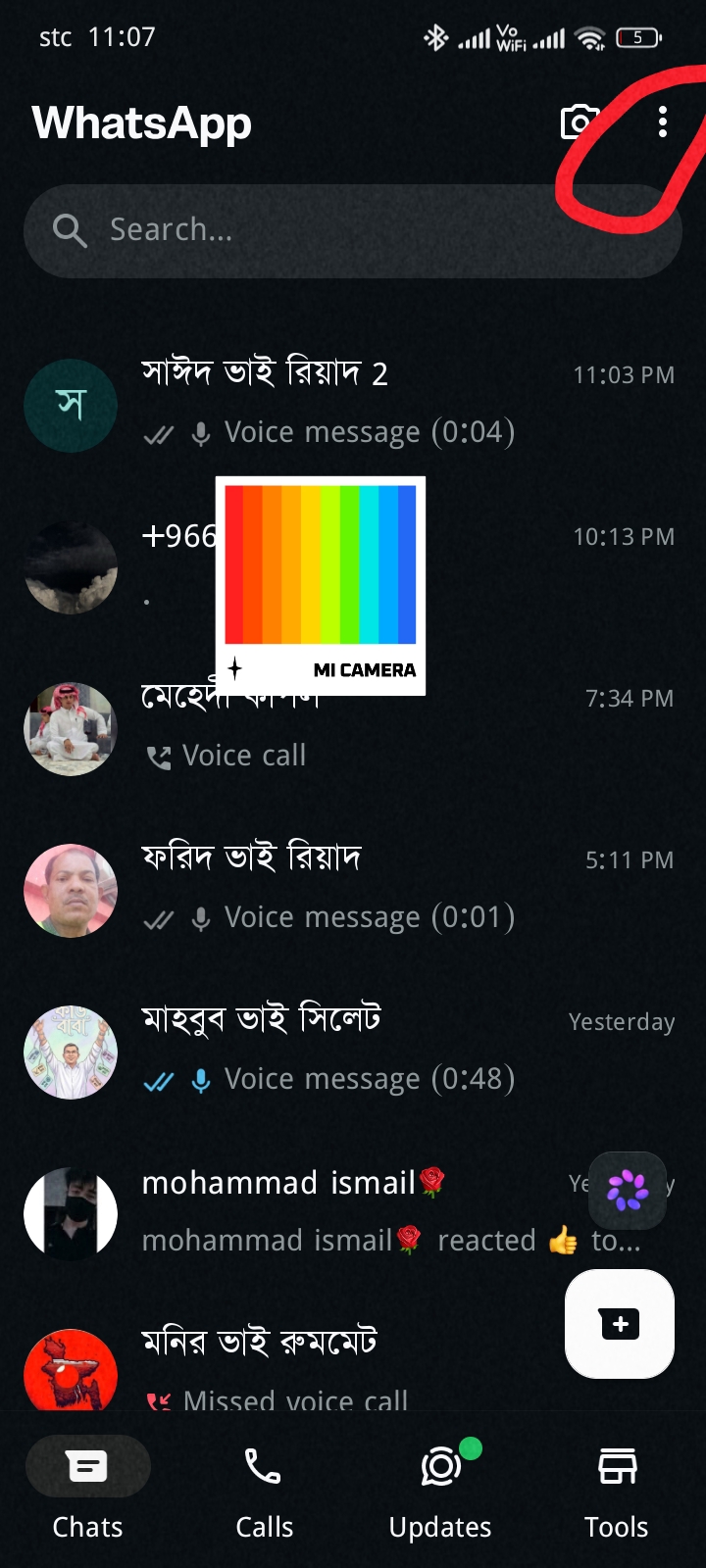 Now follow the screenshot below.
As shown in the screenshot, you will see several options. Tap the option marked with the red box. After tapping it, another menu will appear.
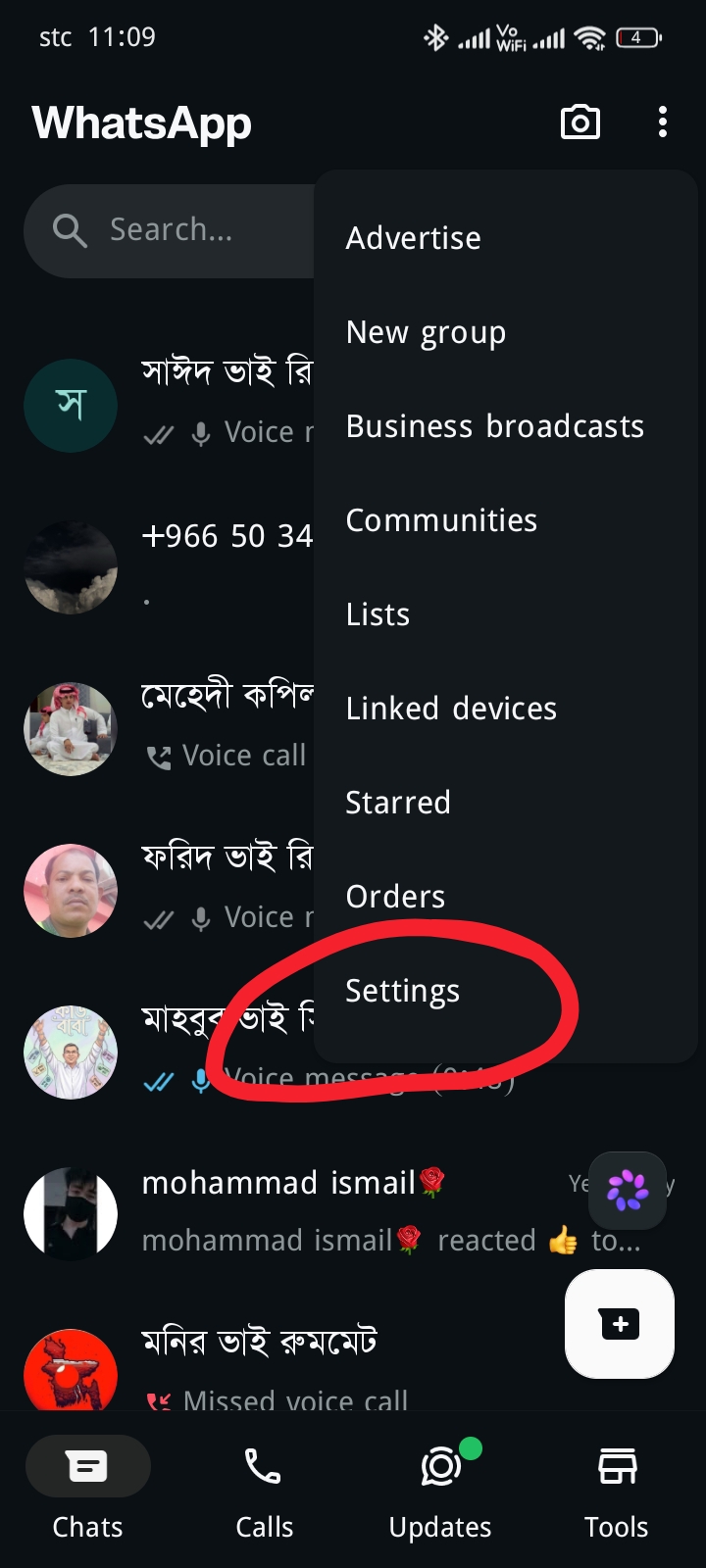 Next, follow the screenshot below.
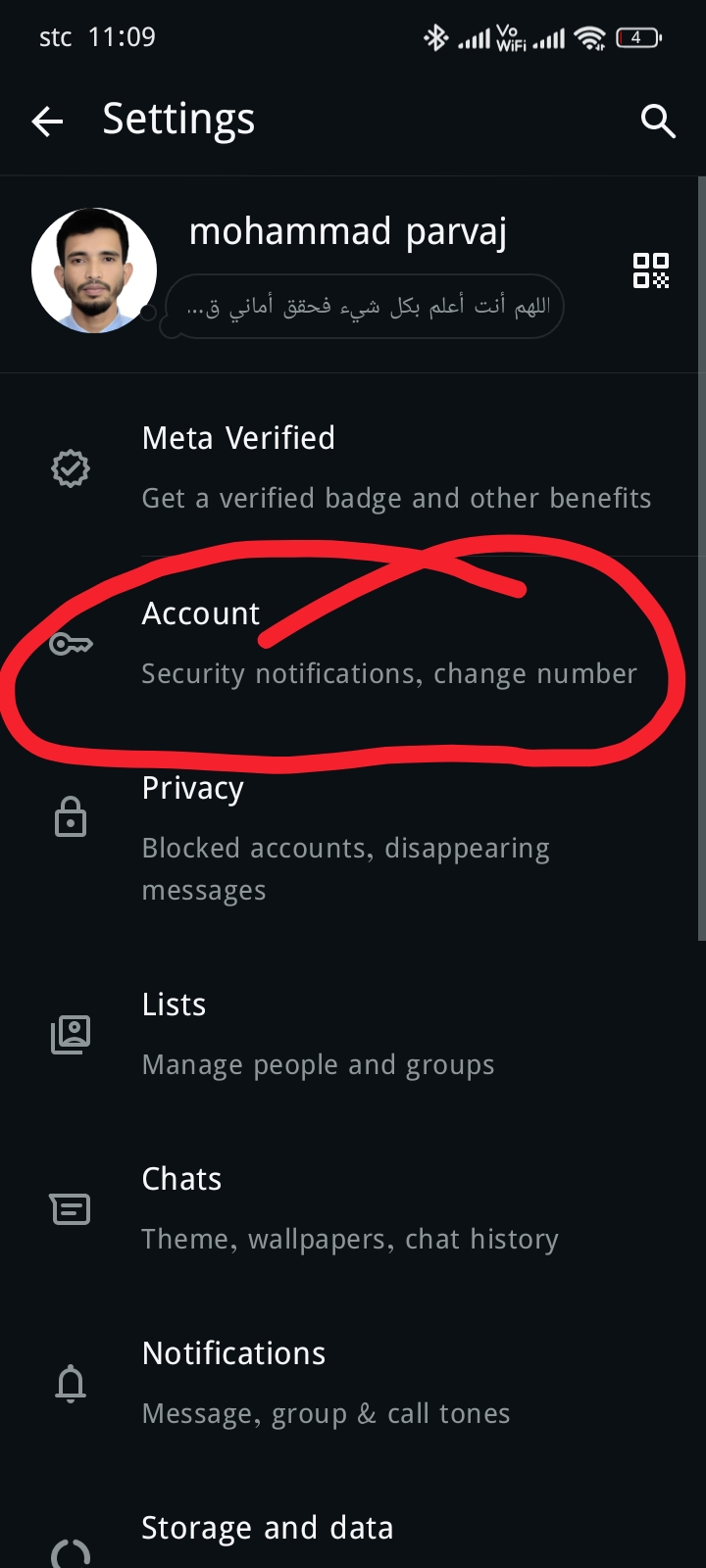
Here you will find several options. Tap the Account option, which has been highlighted with a red box.
After tapping Account, follow the next screenshot below.
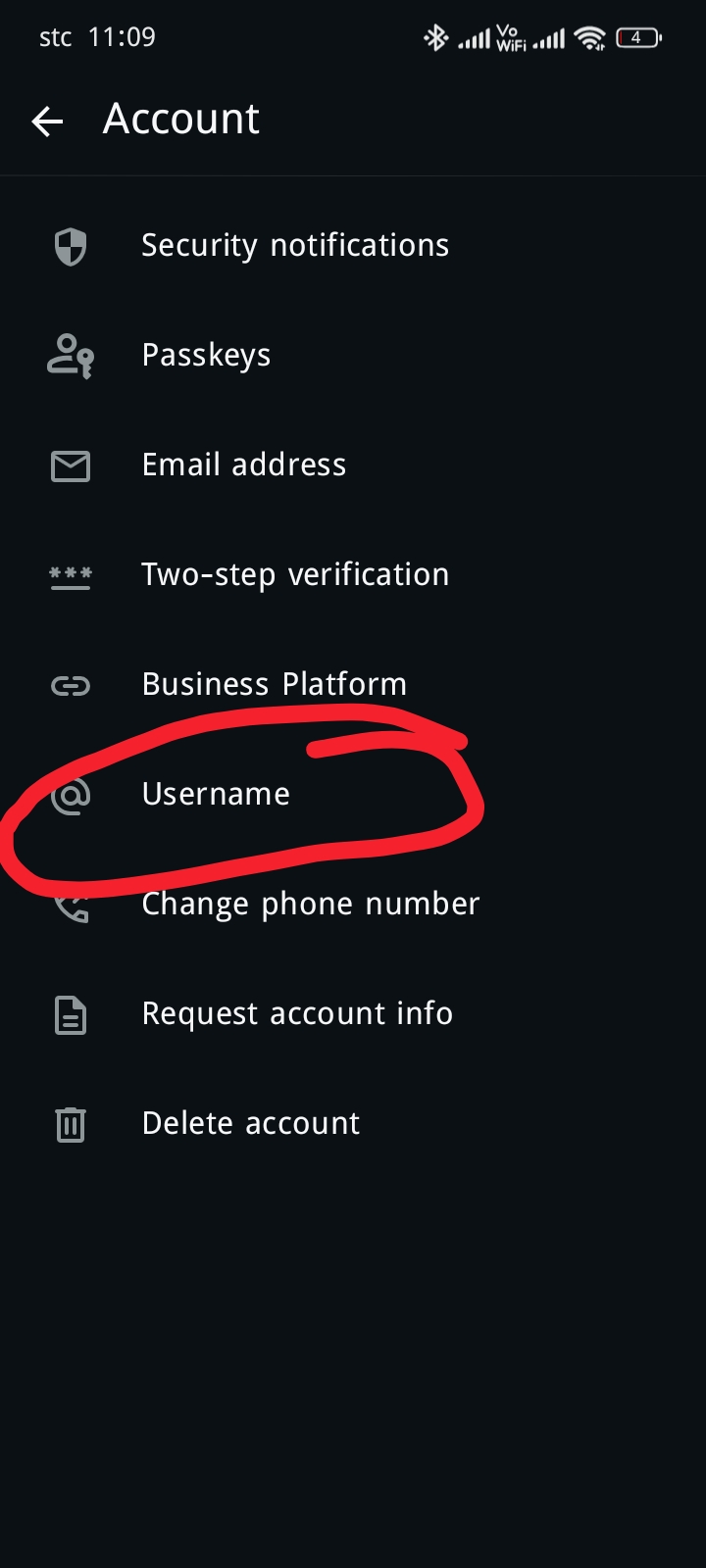
 Now look at the screenshot below. You will find several options, and at the bottom you will see the Username option highlighted in red.
This is the main feature. The advantage of using a username is that you do not need to show your phone number. You can use your username instead, and other people won’t be able to see your phone number easily.
Now tap the Username option and follow the next screenshot.
 Now look at the next screenshot below.
You will see the Username option highlighted in red. Tap on it. It has been marked clearly so that everyone can understand it easily. Once you tap it, the username settings page will open.
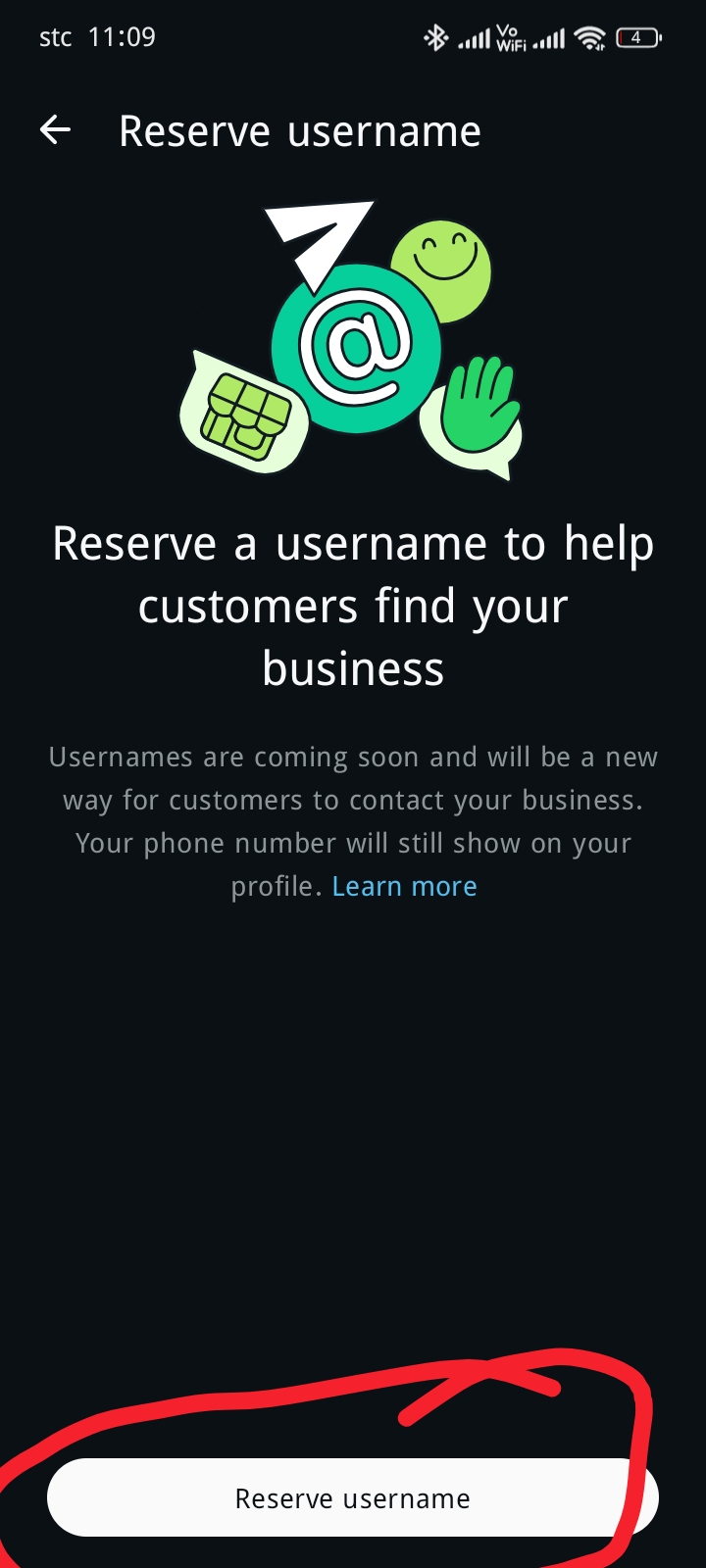 Now you will see a field where you can enter your username. This is where you need to type your preferred username.
Tap the highlighted field and follow the next screenshot below.
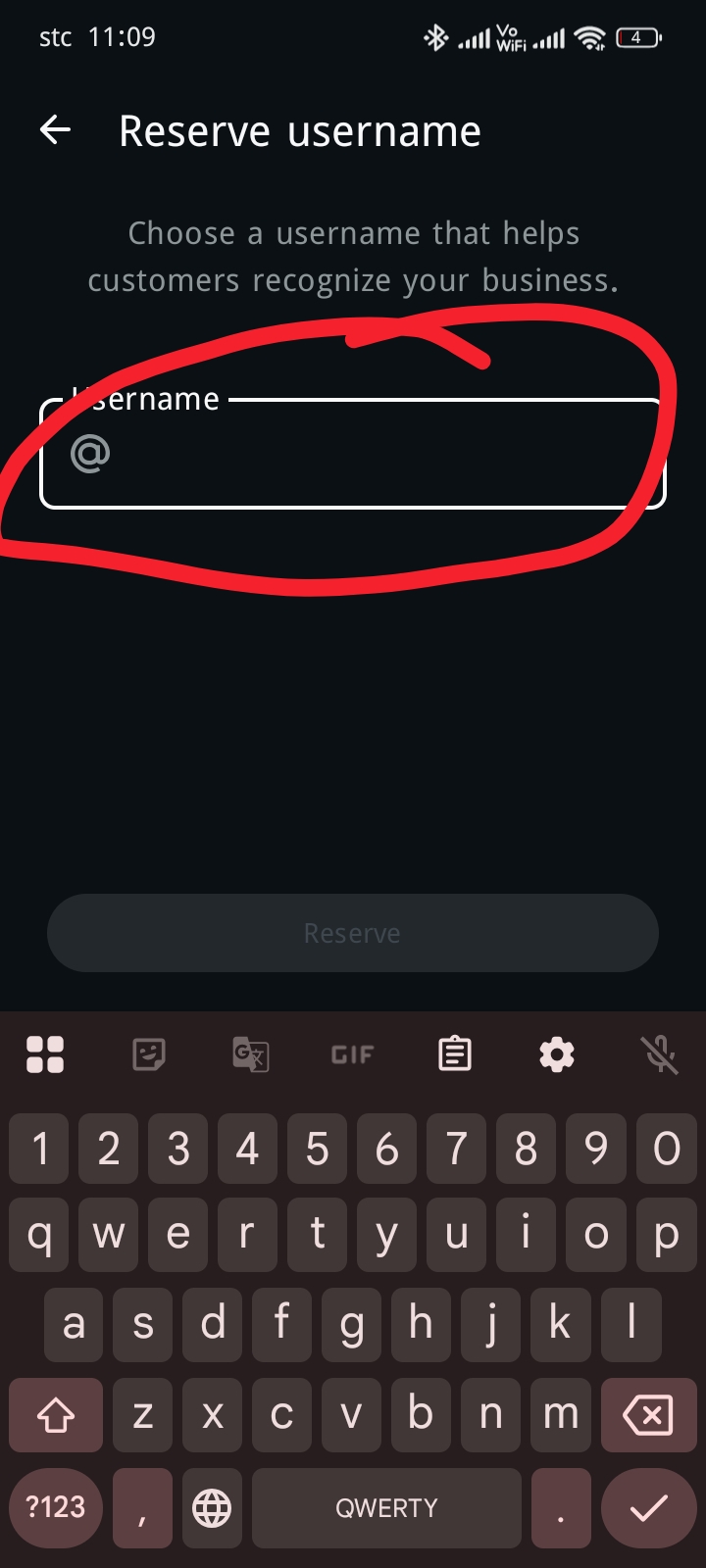 Now look at the screenshot below.
A username field has been highlighted for your convenience.
Type your preferred username exactly as shown in the example. After entering your username, you will see the Save option.
Tap the highlighted Save button. Then follow the next screenshot below.
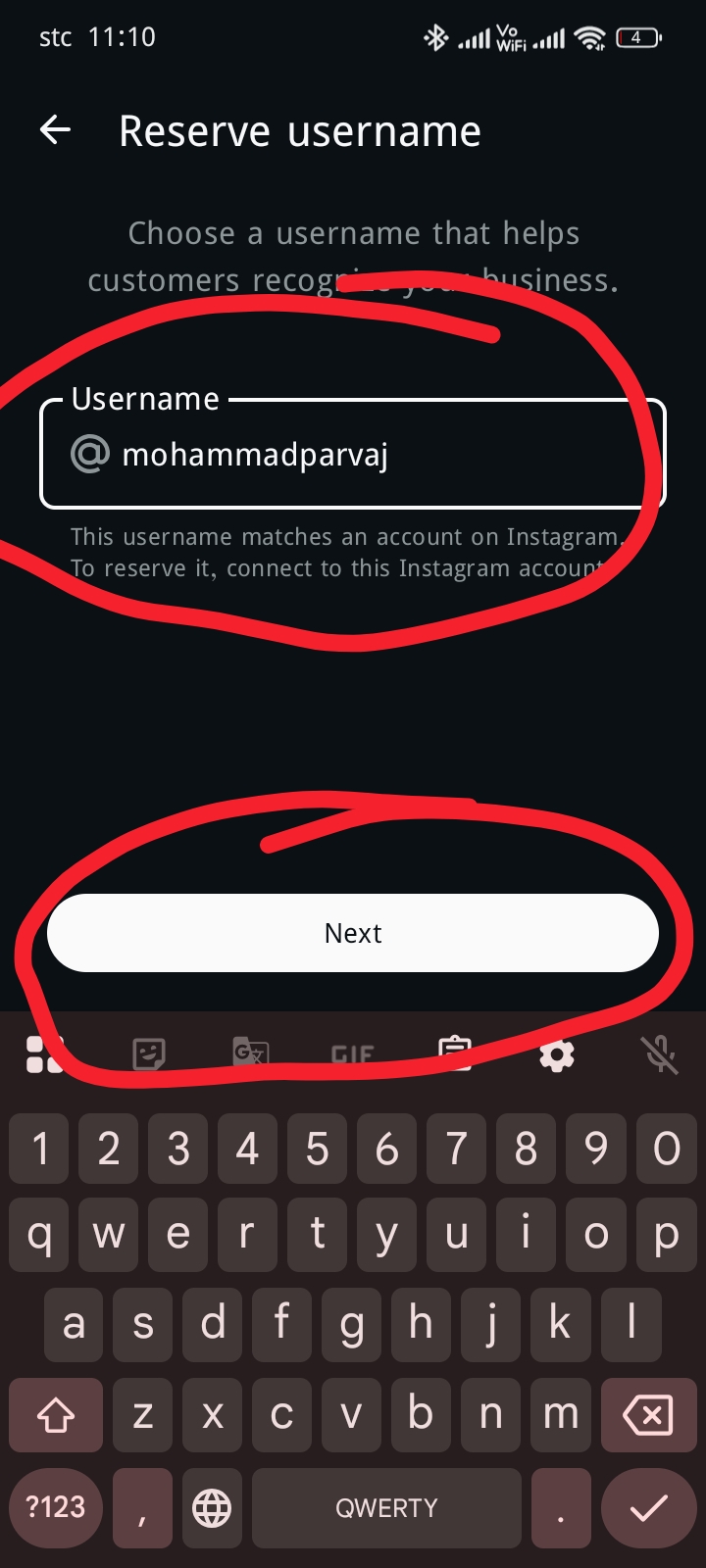 Now, after saving your username, your screen will look similar to the screenshot below. You may also see the option to Connect Your Instagram.
If you are using a WhatsApp Business account, you will need to connect your Instagram account. Tap the highlighted option, and you will be redirected to Instagram. After connecting your Instagram account, your WhatsApp Business account setup will be completed.
If you are using the regular version of WhatsApp, your username will be saved without requiring a Business account or Instagram.
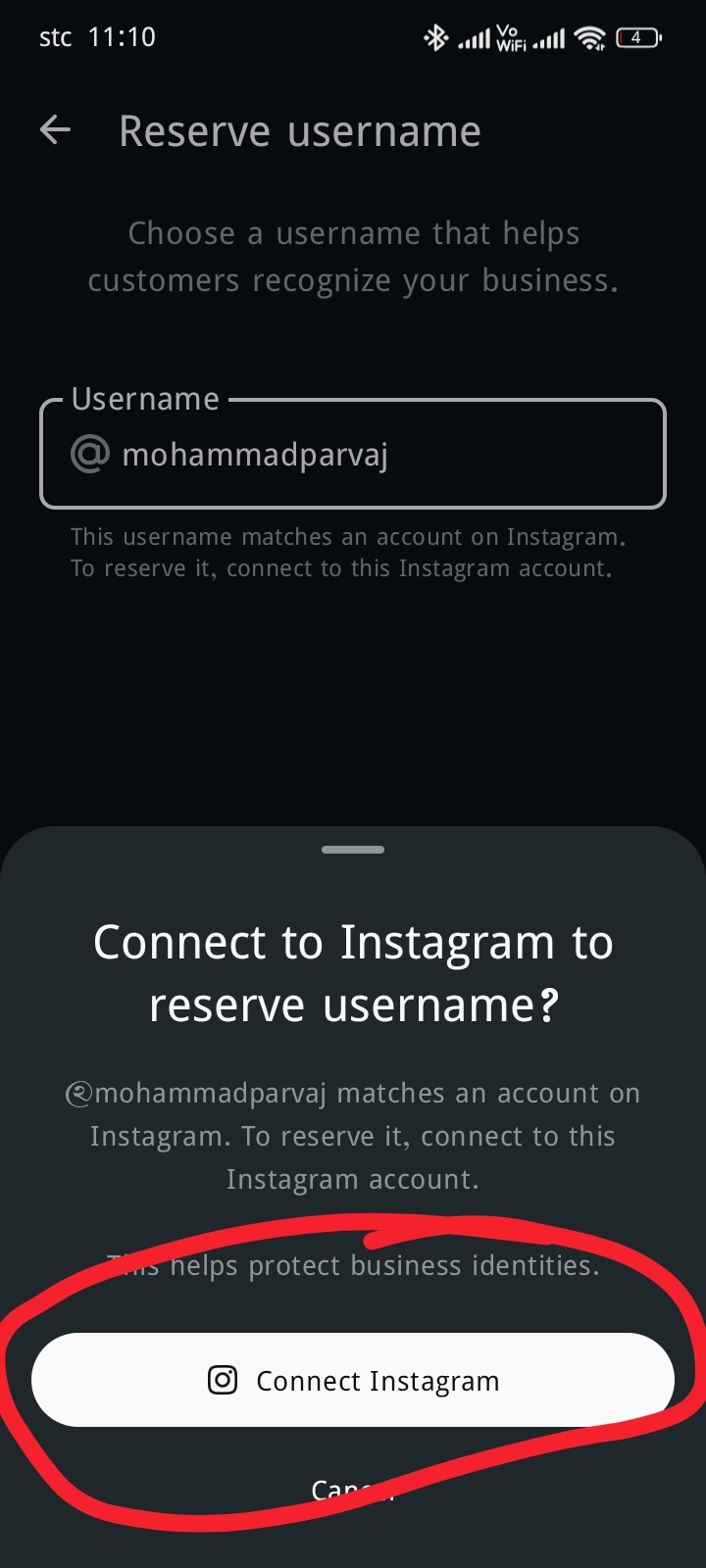
Important Notice: This Instagram connection is only required for users of WhatsApp Business. Without connecting Instagram, Business users may not be able to save their username.
Users of the standard WhatsApp application do not need a Business account or Instagram. They can save their username easily without connecting Instagram.
Why Does WhatsApp Use Usernames?
There are several reasons why WhatsApp introduced usernames. Many users reported to WhatsApp that hackers were misusing their phone numbers and attempting to hack their accounts or demand money from them. To improve user privacy and security, WhatsApp decided to introduce the username feature and officially rolled it out to users.
Benefits of WhatsApp Usernames
The biggest advantage of a WhatsApp username is that users can keep their phone numbers private. Other people will see the username instead of the phone number, making it more difficult for strangers to access personal contact information.
Usernames are also useful for online businesses because customers can identify a business without needing its phone number. In addition, this feature helps improve privacy and provides better protection against scammers and hackers.
Disadvantages
One disadvantage of WhatsApp usernames is that users may no longer be able to see each other’s phone numbers in some situations. As a result, contacting someone directly by phone number may become less convenient. This is currently considered one of the main drawbacks of the username feature.
Final Words
If you followed all the steps above carefully, you should now be able to change your WhatsApp username without any problems. To make the tutorial easier to understand, I have included screenshots for every step.
I hope this guide helped you learn how to change your WhatsApp username step by step. If you found this article helpful, please leave a comment. Your support encourages us to create more useful tutorials.
Thank you for reading, stay safe, and stay connected with PriyoBlog.








Leave a Comment