
If you’re wondering how to update every driver on Windows 11 for free, you’re in the right place. Outdated drivers can cause a wide range of problems, including WiFi connection issues, poor audio quality, Bluetooth pairing failures, graphics lag, and reduced overall system performance.
Drivers are essential software that help your hardware communicate with Windows. When they become outdated or corrupted, your PC may start experiencing unexpected errors, slower performance, or hardware features that stop working properly.
Many users avoid updating drivers because the manual process can be confusing and time-consuming. Downloading drivers from random websites also increases the risk of installing the wrong version or unsafe software.
Facebook Payouts for How to Add Your Bank Account in 2026
In this guide, you’ll learn how to update every driver on Windows 11 using a completely free one-click solution. There’s no need to pay for expensive driver updater tools or search through multiple manufacturer websites. Simply follow the steps below to update all your drivers safely and keep your Windows 11 PC running at its best.
Why Updating Drivers Is Important
Before you learn how to update every driver on Windows 11, it is important to understand why driver updates matter.
Drivers are essential software that allow Windows to communicate with your computer’s hardware. Every major component—including your graphics card, WiFi adapter, Bluetooth, audio device, chipset, and USB controllers—depends on the correct drivers to work properly. If a driver becomes outdated, corrupted, or incompatible, your PC may start showing unexpected issues.
Some problems are easy to notice, such as no internet connection, missing sound, or Bluetooth devices failing to connect. Others are less obvious, including slower performance, game lag, random crashes, USB devices disconnecting, or reduced battery life on laptops.
| Feature | Details |
|---|---|
| Guide Title | How to Update Every Driver on Windows 11 for FREE – One-Click Solution |
| Operating System | Windows 11 |
| Method | One-Click Driver Update |
| Software Used | Snappy Driver Installer Origin |
| Cost | Free |
| Difficulty Level | Beginner Friendly |
| Time Required | 5–15 Minutes |
| Internet Required | Yes (for downloading driver indexes and updates) |
| Focus Keyword | How to Update Every Driver |
| Best For | Updating outdated, missing, or incompatible drivers |
| Result | Improved performance, stability, and hardware compatibility |
Although Windows Update installs drivers automatically, it does not always provide the latest or most optimized versions for your hardware. Keeping your drivers up to date helps improve system stability, enhance performance, fix hardware-related bugs, and ensure compatibility with the latest Windows 11 updates.
Now that you know why driver updates are important, let’s see how to update every driver on Windows 11 using a simple, free one-click solution.
Step 1: Download Snappy Driver Installer Origin
The first step in how to update every driver on Windows 11 is downloading Snappy Driver Installer Origin, a free and reliable driver update tool.
Open your preferred web browser and visit the official Snappy Driver Installer Origin website. To stay safe, always download the software from its official source instead of third-party websites.
Snappy Driver Installer Origin
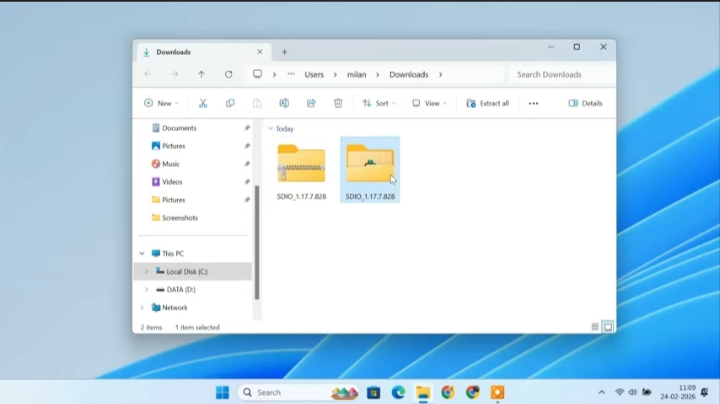
Click the download button and save the ZIP file to your computer. Once the download is complete, open your Downloads folder, right-click the ZIP file, and select Extract All. Then open the extracted folder.
Inside, you’ll find two application files—one for 32-bit Windows and another for 64-bit Windows. Since almost all Windows 11 PCs use the 64-bit version, that is the correct option for most users.
If you’re not sure which version your PC uses, open System Information from the Start menu and check System Type. If it shows x64-based PC, launch the 64-bit application.
Finally, right-click the correct executable file and choose Run as administrator to start the program and continue to the next step.
Step 2: Choose the Correct Download Mode
The next step in how to update every driver on Windows 11 is selecting the correct download mode inside Snappy Driver Installer Origin.
When you launch the program for the first time, you’ll see three download options. Each option is designed for a different purpose, so choosing the right one will save both time and storage space.
The first option, Download All Driver Packs, downloads the complete offline driver library for almost every hardware device. Because the download size can be several gigabytes, this option is mainly intended for IT professionals and technicians who repair multiple computers. Most home users do not need it.
The second option, Download Network Drivers Only, installs only LAN and WiFi drivers. This is useful if your computer cannot connect to the internet and you need to restore your network connection before updating the remaining drivers.
For most users learning how to update every driver, the best choice is Download Indexes Only. This option downloads a small index file, scans your computer, and identifies only the drivers that match your hardware. It is faster, uses very little storage, and is the recommended option for updating a single Windows 11 PC.
After selecting Download Indexes Only, the tool will automatically download the required index files and begin scanning your system to detect any outdated, missing, or incompatible drivers.
Step 3: Scan and Install All Drivers in One Click
Now it’s time to complete how to update every driver on Windows 11 with just one click.
After the index files are downloaded, Snappy Driver Installer Origin will automatically scan your computer. During this process, the tool checks your hardware and compares your installed drivers with the latest compatible versions available.
Once the scan is complete, you’ll see a list of all detected drivers. The program highlights outdated, missing, or incompatible drivers and recommends the best versions for your system. You can also click on any driver to view additional details, including the currently installed version and the recommended update.
To update everything at once, click Select All, then choose Install. Snappy Driver Installer Origin will automatically download and install all the required drivers without needing you to search for them manually.
The installation time depends on your internet connection and the number of drivers that need updating. Allow the process to finish without closing the program.
After all drivers have been installed, you’ll be asked to restart your computer. Save any open work and restart your PC so Windows 11 can apply the new drivers correctly.
Once your computer boots up again, you’ve successfully completed how to update every driver on Windows 11. Your system should now have the latest compatible drivers, helping improve performance, stability, and hardware compatibility.
Step 4: Verify That Everything Is Working Properly
The final step in how to update every driver on Windows 11 is making sure all your drivers were installed successfully.
After restarting your computer, right-click the Start button and open Device Manager. This tool lets you view all the hardware devices connected to your PC and check whether they are working correctly.
Go through the list and look for any yellow warning icons next to a device. If there are no warning symbols, it usually means the drivers were installed correctly and your hardware is functioning as expected.
To be extra sure, test the devices you use most often. Connect to your WiFi network, play audio through your speakers or headphones, pair a Bluetooth device, plug in a USB device, and if your PC has a dedicated graphics card, launch a game or graphics-intensive application to confirm everything is running smoothly.
If you experience any unexpected issues after the update, you can use Device Manager to roll back the affected driver or restore your system using a previously created System Restore point.
In most cases, once you’ve finished how to update every driver, your Windows 11 PC will run more smoothly, with better performance, improved stability, and fewer hardware-related problems.
Why This One-Click Method Is Better
If you’re looking for how to update every driver on Windows 11 without paying for premium software, this one-click method is one of the best options available.
Many driver updater programs claim to be free, but after scanning your computer, they require a paid subscription before you can install any updates. Some also display intrusive advertisements or bundle unwanted software during installation.
Snappy Driver Installer Origin takes a different approach. It is designed to detect and install the correct drivers for your hardware without charging for the update process. There are no forced upgrades or unnecessary software installations—just a simple way to keep your Windows 11 drivers up to date.
Another major benefit is transparency. The tool shows exactly which drivers need updating, along with their current and recommended versions. This allows you to review the changes before installation, giving you more control over your system than many other automated driver updater tools.
For anyone learning how to update every driver on Windows 11, this free one-click solution is fast, reliable, and easy to use. It helps keep your PC running smoothly while avoiding the hidden costs and unnecessary extras found in many alternative driver update programs.
Final Words
Keeping your drivers up to date is one of the easiest ways to maintain a stable and high-performing Windows 11 PC. If you’re experiencing issues like WiFi disconnects, audio problems, Bluetooth errors, graphics lag, or slow system performance, outdated drivers could be the root cause.
By following this guide, you’ve learned how to update every driver on Windows 11 for free using a simple one-click solution. Regular driver updates can improve system stability, enhance hardware compatibility, and help your computer run more smoothly.
If this tutorial helped you, be sure to visit Priyo Blog for more easy-to-follow Windows guides, technology tutorials, SEO tips, and blogging resources. We regularly publish practical articles to help you solve everyday tech problems and get the most out of your devices.








Leave a Comment